Showing posts with label user interface. Show all posts

Friday, May 23, 2008

Questioning Tog: Does the Mouse Really Rule?

Did you hear this one? According to Tog, the keyboard feels faster than the mouse, but it's actually slower. (This came via Tim Bray and John Gruber).

Tog says Apple spent $50 million on user interface related R&D by 1989, and learned, among (hopefully numerous) other things, that:

  • Test subjects consistently report that keyboarding is faster than mousing.
  • The stopwatch consistently proves mousing is faster than keyboarding.
Tog's explanation: using the mouse is easy and boring, so it feels slower than recalling keyboard shortcuts, even though "the stopwatch will tell you" that it's actually faster.

No matter how many times I've read this very general statement, it never sounded right to me. Nobody seemed to ever mention any details. When I finally took the plunge and read Tog's actual analysis (parts 1, 2 and 3), I found out that the details still weren't there.

I would really like to know the answers to the following questions, for example:
  1. How many different functions did the subjects have to perform in these tests?
  2. What exactly did accomplishing a task by "mousing" and by "keyboarding" involve?
  3. How many key combinations did the user have to remember for a test? How difficult were these key combinations to enter? How easy were they to remember?
  4. How many mouse targets needed to be acquired, how big were they, and how far apart were they positioned?
  5. Did the users have any previous experience with acquiring similar mouse targets to those featured in the test?
  6. Did the users have any previous experience with using similar (or identical) keyboard combinations to those in the test?
  7. Was the user manipulating an object (like a text box or an image) between these "tasks"? If so, how big was the visual representation of this object? Did the user have to return to the object after acquiring the target needed for the task? If so, was it also timed?
I think Tog's "mousing is faster than keyboarding" statement is akin to saying that "walking is faster than driving," and neglecting to mention whether you were running your tests on a speedway or in a staircase.


Tog's test revisited

Tog does provide us, though, some insight into the methodology of at least one of his tests in the third part of his discussion:
The test I did I did several years ago, frankly, I entered into for the express purpose of letting cursor keys win, just to prove they could in some cases be faster than the mouse. Using Microsoft Word on a Macintosh, I typed in a paragraph of text, then replaced every instance of an "e" with a vertical bar (|). The test subject's task was to replace every | with an "e." Just to make it even harder, the test subjects, when using the mouse, were forbidden to just drop the cursor to the right of the | and then use the delete key to get rid of it. Instead, they had to actually drag the mouse pointer across the one-pixel width of the character t o select it, then press the "e" key to replace it.

The average time for the cursor keys was 99.43 seconds, for the mouse, 50.22 seconds. I also asked the test subjects which method was faster, and to a person they reported that the cursor keys were much, much faster. This was a classic example of the difference between subjective time (the passage of time the user experiences) and objective time (the passage of time the clock experiences). Put simply, the more mentally engaging the task, the shorter the time appears.
While I'm not a user interface expert, this passage leaves me scratching my head. It does seem to prove an interesting point on perception vs. reality, but it definitely fails to prove that the mouse is faster in general.

All it proves is that acquiring targets (vertical bar characters) scattered over a large area of the screen is more efficient with the mouse than with the keyboard. As we'll see in a minute, moving to smaller distances (especially single steps) would be much easier with the keyboard.

The same way, if you need to pick up 20 parcels which are miles apart, you'll probably take a car or a bike, but not if the same parcels are placed on the first 20 steps of a staircase.

As the vertical bars can be pretty far from each other, moving your pointer between them constitutes a significant part of the test, so it should favor the mouse, the faster vehicle – so I thought. But when I ran the test* on myself as a (somewhat questionable) test subject, using TextEdit and a paragraph from an Ask Tog article, I got the following results:
  • Mouse: 143 s
  • Keyboard: 133.5 s
I simply kept pressing the right arrow key until a vertical bar came up, at which point I selected it using Shift-Right arrow, and replaced it by pressing the "e" key. Surprisingly, and contrary to Tog's data, it was actually the keyboard that turned out to be marginally faster in this test.

By the way, having performed this test, I really fail to see how much it has to do with what Tog calls the "high-level cognitive function" of deciding "upon which special-function key to press." Maybe I'm really smart, but I didn't find that holding down an arrow key would tax my cognitive capabilities that much.

I also noticed how unnatural it felt to be using the mouse for the task. I was struggling to exert the right amount of force needed for precision alignment. It felt unbelievably tedious and even physically painful – my right wrist actually hurt afterwards. (Could all this suffering be another reason why using the mouse for the task seems longer than it actually is?)

*These test results are meant to serve little more than entertainment purposes. One (biased) subject, who happens to be the same person who devised the test, is less than statistically convincing. Yet I've made efforts to make these tests as meaningful as possible. I performed every task several times, and averaged the results. When I felt that fatigue, proficiency achieved by practice, or other factors interfered with my results, I kept re-doing the tests, switching their order, and sometimes taking long breaks from them, until I found that my results stabilized around a value, and that any difference between the values I got for the two or three tasks I was comparing was representative rather than accidental. I also honestly tried to achieve a reasonably good score in each test, without going into extremes. (I basically pretended that I had to perform actual work, in an office setting, on a looming deadline. I'm an average typist, and a power mouse user, having spent a decade working in Photoshop, Illustrator, InDesign, and Final Cut Pro, all particularly mouse-heavy applications.)


The mouse fights back

It occurred to me later that my results may have been affected by the font size I happened to be using. It was 13 points (Verdana) on a 17" screen at a 1440 x 900 resolution; Tog might have used a larger font and/or a smaller screen resolution almost two decades earlier.

Sure enough, setting the font size to 22 points turned the results around, improving the speed of the mouse by a large margin, and letting it score a narrow victory over the keyboard (though nothing like the double speed that Tog reported). Keyboard times also improved a bit:
  • Mouse, large font: 113 s
  • Keyboard, large font: 122.5 s
So Tog seems to have neglected a very important factor in his keyboard vs. mouse test: font size. Larger mouse targets are obviously easier to acquire, so the point size of the text you're editing can decide which method is better or more efficient.

That got me curious. What happens if we increase the font size to a ridiculous 200 points? I found out that the difference between the mouse and the keyboard almost disappeared in this dreadfully impossible task. In addition, the test results varied greatly, and repeating the test again and again helped improve times by leaps and bounds as I learned new tricks on the way. The keyboard started to win again, though mouse performance improved by a small margin every time I repeated the test. I averaged the results when I felt that the curve of the mouse improvements was flattening out:
  • Mouse, huge font: 155.5 s
  • Keyboard, huge font: 133 s

Beating the test

But there's more. Trying to speed up my "keyboarding," I tried the Alt-Right Arrow key combination, which jumps one whole word ahead, making navigation faster – and stumbled upon a "cheat": TextEdit considers the vertical bar a word boundary, thus whenever one shows up, Alt-Right arrow will stop the pointer right before it. Using this cheat (which involved more cognitive brain functionality, as well as some keyboard acrobatics), I needed more concentration than before, so the task felt much more difficult, and I also had to stop and correct some errors (something I didn't have to do using the other two methods). However, it cut my keyboarding time by a fourth, beating the hell out of the mouse at both normal and large font sizes:
  • Keyboard "cheat," normal font: 95.5 s
  • Keyboard "cheat," large font: 94.5 s
Noticeably, increasing the font size did nothing here. My theory is that finding each vertical line character was somewhat automatized by the cheat, so better visibility wasn't much help.

One side effect of the cheat was that I ended up inadvertently typing a lot of uppercase "E"s. I think the reasons are that here (1) I had to use two modifier keys (Alt and Shift), (2) I had to switch between them pretty fast, and (3) almost every second navigational keystroke (i.e. Alt-Arrow) was followed by a selection (Shift-Arrow), then immediately by a replacement ("e") keystroke, requiring me to switch between three different key commands very often, making me mess up one of them a lot.

Using a huge font size slowed down this task as well, but it was still the fastest way at that size:
  • Keyboard "cheat," huge font: 123 s
The table and graph below summarize how the font size change affects the three input methods tested. The straight lines connecting the dots should by no way be interpreted as implying continuity, they are provided mostly for better visibility (and as hints at very vague trends).

I could come up with several pages' worth of analysis, comparing and contrasting how font size affects each test case, but suffice it to say that without specifying everything down to the smallest details, it's just about impossible to decide whether the keyboard or the mouse is faster even in a very simple test like this. Tog seems to have oversimplified things a lot.


The keyboard's turn

In order to investigate things a bit further, I also came up with a test of my own, one where I felt the keyboard would have the edge, as it required smaller, more precise navigational movements.

In my test, the subject needed to replace every second letter of every word in a (much shorter) paragraph with the letter "p." I was the test subject again, and these were my results:
  • Mouse, normal font: 137 s
  • Keyboard, normal font: 90 s
  • Mouse, large font: 118 s
  • Keyboard, large font: 76.5 s
Boy, did I manage to contrive a test that favors the keyboard! As expected, it performed better as a means for selecting every second character of a word. Rhythmically pushing the right arrow twice would always do the trick, whereas with the mouse, I had to move past small characters of varying width*, and had to strain myself to position the pointer accurately. It seemed unnatural.

Replacing the letters was identical in both cases, so it didn't influence the results. (Or did it? We'll get back to that very soon.)

Somewhat surprisingly, a larger font size helped both tasks equally well. I expected mousing to benefit more, as the targets became larger, thus easier to acquire. Investigating the reason for this anomaly is beyond the scope of my blog post, but it, again, proves my main point: that things are complicated.

If you think by now that I'm some sort of a keyboard evangelist and mouse hater, rigging tests so that they will always let the keyboard win, then well, you've got that mouse pointer hovering over the wrong guy. No, I'm the guy who keeps rigging tests in small ways that change the results in big ways, trying to show that simplistic statements like Tog's are simply wrong. And ultimately, I just want the help the case of redundancy and freedom of user choice in user interface design.

So then I changed a little aspect of my test: instead of the letter "p," the subject now had to enter the "¶" character in place of every second letter of every word. This turned the test on its head, making the previously victorious keyboard lose by a Tog-uesque 50% margin.

What gives? Well, it's simple. While the subject (i.e. yours truly) could easily rest his fingers on the "p" key while navigating with the keyboard in the previous version, that was no longer possible with the hard-to-reach Alt-"7" combination needed for the "¶" character. Thus, every time I had to switch between entering that symbol and navigating/selecting, I had to lift my fingers off the keyboard and reposition them, losing a lot of time. (With practice, my times improved greatly. From an initial dysmal 184 seconds, which I excluded from my calculations as an anomaly, I reached a much more respectable average of 149 seconds by the time I finally decided to give the whole frustrating mess a rest. As always, the number I provide is an average. However, an interesting trend to note is that this is an initially huge margin that gets significantly smaller with practice.)
  • Mouse, large font: 126 s
  • Keyboard, large font: 149 s

So, guess what? You can't say that "the keyboard is faster." You can't even say, "The keyboard is faster when replacing every second letter of every word in a text." No, you even have to say what character you're replacing it with. It gets as specific as that.

*Switching to a monospaced font didn't help much, though. I ran the test with Monaco, and didn't notice any statistically significant improvements.


Conclusions

After testing some very narrow areas of the huge field of "user interaction by keyboard vs. mouse," all I can say is that both input methods have their strengths and weaknesses, and their optimum fields of use should be analyzed and investigated much more carefully than Tog appears to have done.

Personally, I think it's best to let the user decide what method(s) to use, and provide for both keyboard and mouse-based functionalities, whenever it makes any little sense. But even providing several methods isn't going to be enough: you also have to get them right. Designing key commands and mouse targets is pretty easy to mess up, having the user end up with useless input methods even in their preferred contexts.

Also, even though some specific input methods may have intimidating learning curves, in some cases, they may be worth the effort (e.g. in the case of the iPhone keypad). Obviously, users may be a bit tough to sell on such user interface choices, so they must be explained in a careful and convincing way.

Finally, I also wonder whether it's always speed that matters. It may easily be the case that the faster way of performing a task is more exhausting, less natural, or simply less fun. Speed may or may not be important; the developer simply can't imagine every possible way his or her product will be used. Maybe a task you imagined to be pretty rare as a developer will end up being the one that your user needs to perform a thousand times in the course of two hours – so there had better be a fast way of doing it. And while you're at it, why not also create an easy way, and a fun way? Redundancy can be a great thing in the world of user interfaces.

That is, unless you can find a perfect way, one which is easy, fun, fast and natural in every situation – I'm hard-pressed to find too many examples, though.

Read More...

Tuesday, March 25, 2008

The Magic Text Field: searching, URLs and bookmarks

Cabel Maxfield Sasser notes how advertisements in Japan display search boxes with recommended search terms, as opposed to URLs. It certainly feels more user-friendly (and natural) to enter real words into one box (the search box) than to type something as geeky as a URL in another box (the URL field), and the author even speculates that future versions of Safari may transition to displaying a more prominent Google field and a less prominent URL field.

This has got me thinking. These are my closely related, highly anecdotal observations on URL entry vs. searching:

  • Some people (especially Firefox users) enter everything, even URLs, in the Google box. (By default, a new Firefox window has focus on the Google box.) These users will have to click again at the Google-displayed URL, but they don't seem to mind.
  • I sometimes catch myself mistakenly using the URL field instead of the Google field, hinting that search may be taking over from URL entry in my use as well.
  • Firefox actually accommodates (perhaps encourages) this previous behavior: entering expressions in the URL box yields Google search results or top hits. Other browsers simply display the predictable error messages caused by such attempts at connecting to malformed URLs.
But then I also have some more loosely related observations as well, mostly concerning bookmarks and history items:
  • I hardly ever use the bookmarks menu for opening a page, relying on the autocomplete feature of the URL field instead. That is, if I add something to my bookmarks, I will navigate to it later by starting to type some words from its URL (if meaningful), rather than choosing it from the menu.
  • But then I hardly ever add any bookmarks either. If I want to bookmark a page for later retrieval, I don't have to do anything: it will be automatically added to the History list, and thus it will be available for autocomplete, too.
  • In Leopard, Safari's history items and cached pages are indexed by Spotlight, even enabling users to find visited pages by searching for words in their contents.
The most perfect solution for me would probably involve one huge box with hooks for a lot of AI magic working behind the scenes, listing Google hits, URL matches, Wikipedia and Dictionary and other results, cached page search terms, all categorized, ranked in an ultra-smart way with the most likely results first, all displayed in real time, with easy keyboard-based navigation possibilities.

I think web pages are verbal, and the most natural way of relating to them is by typing text.

Read More...

Thursday, November 08, 2007

Behind the rumors: is it an iPhone Pro, or a Mac touch?

According to recent rumors, "Asus is helping Apple build a Tablet PC." This comes only a few weeks after a rumor suggesting the return of the Newton handheld computer.

I strongly believe that (a) a new device is coming indeed, and (b) it will sport a MultiTouch interface.

But is it going to be an extended iPod touch/iPhone, or will it be a modified Mac? I think both are possible. Here's what I think about these two (not mutually exclusive) scenarios.

Mac touch

Tablet PCs have failed only because they were horrendously badly executed, and were saddled with ridiculous ideas. No usable keyboard? Why the hell would anyone want to interact with a computer via handwriting? Isn't typing demonstrably faster? Hello?

That doesn't mean, however, that a tablet PC is inherently a bad idea. On the contrary: at worst, eliminating a physical keyboard could easily save space and cost, ushering in a new class of unexpensive, miniaturized PCs. At best, a new set of thoughful metaphors could emerge, with several advantages over traditional input mechanisms.

The iPhone has shown us all that Apple gets it. The iPhone interface features direct manipulation metaphors that arguably beat everything else out there, including the mouse and the trackball. It can also simulate a keyboard, though the lack of physical feedback is a disadvantage. (Apple may be working on a solution there: I sure hope they are.)

How difficult would it be for Apple to modify Mac OS X in order to accommodate a MultiTouch user interface, complete with a usable onscreen keyboard? A stylus would probably be included for precision work, but most tasks could be achieved using your fingers. Just imagine your daily work on a Mac, and imagine using your fingers instead of the mouse: I'm hard-pressed to find anything that would no longer be doable. (Things like right-clicking would need clever substitutes, though.)

It can be argued whether or not "direct manipulation" of objects on the screen would be better than using a pointing device on a different surface. However, some new metaphors, borrowed from the iPhone and from trackpads of Apple's laptops, could definitely provide a superior experience. Think about two-finger scrolling, page-turning gestures, or the zooming "pinch": these certainly beat scroll arrows or "next page" buttons. And yet further multi-finger gestures could be born, something that no mouse could ever accommodate. (And besides, even single-finger gestures are much easier and more natural than their mouse equivalents: operating a mouse is not that easy; we've just all gotten used to it.)

Specs: If Apple believes the "Mac touch" to be a potentially superior device, one that would one day supplant both the desktop and the notebook form factors, shipping large and powerful configurations would make a lot of sense. If Apple only views the "touch" as a companion device, whose main selling point is its miniaturization, then obviously, we're only talking about smaller configurations. Maybe there would be a "Pro" class, even, featuring different storage and size options.

There's a minimum screen size below which the device would be hard to use; thus I don't think we would see a Mac touch with a screen smaller than 8" or maybe even 10". Larger configurations could be just about any size, even 20", though I would be surprised if Apple actually shipped such a huge Mac touch at the device's debut.

The small version(s) would definitely represent a breakthrough in miniaturization, so it's questionable whether they would even feature optical drives. I imagine a very thin form factor, dominated by a huge screen, one or two buttons, speakers, a microphone, and Bluetooth, WiFi, Ethernet, USB and FireWire interfaces. It would definitely use batteries. As for internal storage, smaller models could avoid hard disks and use flash memory; a larger (Pro?) family could perhaps use both (as well as an optical drive).

Pros*: Compatible with existing Mac; full-featured; no need for Apple to port OS or apps
Cons*: Form factor too large for some uses; no real breakthrough in miniaturization; probably costly


iPhone Pro/Newton

I've always yearned for a time when miniaturization would endow a handheld device with the full functionality of a computer. Then I realized that it's not as simple as that. In order to be successful and usable, a tiny computer needs a different, well thought out user interface – it can't just run the OS of its full-sized siblings.

This is why I was so ecstatic about the birth of a new platform this January. Apple's handheld OS X and other related technologies have proven themselves to work beautifully, and they are bound to make their way into other products. Since then, they have already given birth to the iPod touch: a somewhat premature development in my opinion, but a necessary one to keep the freshness of the iPod brand (I'd wager heavily that most iPod sales come from the nano and maybe the classic.)

What if Apple were to release a similar, though somewhat larger device, one that could function as a supercharged PDA and/or a stripped-down Mac?

After all, most of the work is already done. The technology is there, all Apple needs to do is build a larger device, write some additional apps (or port some existing apps over to it), and voilà: there's your new Newton, powered by iPhone technologies (perhaps without the phone part, though)!

As an aside: I'm relieved that my iPhone predictions are turning out to be overly pessimistic in light of the SDK that Apple announced. We still don't know from Steve Jobs' musings how open the platform is going to get, or how smart Apple itself is going to make the phone – will it sprout a clipboard any time soon, for example –, but at least, the phone will further tap into the huge potential of having OS X running on a handheld device. However, I'm still not sure if the iPhone will ever be intended to become a true PDA or handheld computer. I think Apple will strive to keep simplicity as one of its main virtues. So, there may be room for a more powerful iPhone-like device in Apple's product matrix.

Specs: This would be a handheld device, though a somewhat larger one than the iPhone. It would expand on the capabilities and features of the iPhone – or of the iPod touch. (It's a good question whether it would double as a cellphone: such a functionality would certainly be welcome, especially for internet access, but having to commit to a monthly plan would also turn away some potential users. Maybe two versions would emerge, one with, and one without a phone.)

It would probably ship with enhanced versions of iPhone apps, as well as additional ones written by Apple. All in all, it would be a new-ish platform; an evolutionary development over the iPhone, but perhaps consummating the revoution it started.

Bluetooth, WiFi, flash memory would be a given, anything else (Ethernet, USB, etc.) could be anyone's guess.

Pros*: Smaller form factor; possible cellphone functionality; potentially lower price
Cons*: Incompatible with Mac software; still not a full-blown computer; yet another platform for Apple to support, and for third parties to develop for


* Pros and cons: a comparison between the two speculative scenarios.

Read More...

Friday, October 26, 2007

Leopard's Stacks renders Dock even more useless

It's obvious by now that the Dock is Steve's pet feature, otherwise such a usability nightmare would have been scrapped long ago. Yeah, I've kind of gotten used to it, but still: it's awful.

It fails most prominently as an application launcher. First of all, it can only hold a handful of your apps. If you add too many, they will be too tiny to be practical.

Second, this is clearly the case when a word is worth a thousand pictures. If I look for Photoshop, I want to find it under "P," not "next to the icon with the QuickTime logo, not far from the stamp icon." You can alphabeticize names. You cannot put icons in any meaningful order. So every time I look for an app in the Dock, I waste several seconds, and grow just a bit more frustrated.

Luckily, there is (or rather, was) a solution. I put my Applications folder in the Dock. I click on it, and up pops the entire hierarchical list of all my apps. This is such a great shortcut that I cannot live without it.

In fact, every time I sit down to anyone's Mac, I make sure to put the Applications folder in their Dock. That's the only way I can even begin to work. After I'm done, I leave it there. Nobody complains.

It should be there by default.

Shockingly, Apple is disabling this functionality. According to David Pogue:

I'm not totally sold on the Stacks feature. That's where you click a folder icon on your Dock, and rather than a complete menu of the folder's contents, you get a fan or a grid that shows an array of the actual icons inside. Trouble is, if there are more than 24 items in that folder (depending on your screen size), you get only a partial list. To see the rest of the contents, you have to click the icon that says, "35 more in Finder," which opens that folder's actual desktop window.

There's no way to make the Dock show the complete list of folder contents anymore; nor can you stick your hard drive's icon in the Dock and have complete, drill-down, hierarchical access to your entire computer, as you could before.

Wow. I didn't see this one coming.

This can very easily be a dealbreaker for me. I'm not joking.

Read More...

Monday, August 20, 2007

Numbers rocks: how I forgot about the review and ended up doing my budget

Apple has made a trial version of the iWork suite available as a free download. Pretty smart move: the suite is relatively small (it fits on a CD), so this is a great way to get people test drive the latest version of this emerging little office suite. (Let me get back to the "office suite" part later.) You can buy an activation code online to unlock the trial version, so basically, Apple is distributing iWork '08 as shareware. Cool.

I've put Keynote and Pages through their paces, and they're OK. But what I've been most interested in was Numbers. Why? Here's a list why:

  1. It's new. Duh.
  2. It's a spreadsheet app, and those are relatively rare. Word processors are a dime a dozen.
  3. I wanted to see if Numbers is competitive with Excel.
  4. I work with data a lot (Excel, FileMaker, and so on), and wanted to see if this new tool is of any use for me.

As anecdotal as it gets, but still, wow...


So I fired up Numbers, and started off by using one of its built-in templates. I noticed one that was called "Budget," [edit: originally I wrote "Home Budget," not sure how I'd got that wrong] and thought, what the hell, let me try that one.

I've been putting off drafting an annual personal budget for quite some time now. I was looking for the right tool for the job. Now, it's important to know that I'm a tool freak. (Also a Tool freak, but that's probably beside the point.) That is, I can obsess about the right tool for the job a lot more than about the job itself. It's almost a policy. Yep, I know this can be a flaw. But not always.

Anyway. So far, I've tried creating FileMaker Pro databases, using and extending Excel templates, and I've always given up after a certain point. Building a FileMaker database is almost like writing an application: you need to do a lot of work before you can start using it. About Excel, I just didn't know where to start. The built-in templates weren't much use, and as for rolling my own: the task seemed a little too intimidating. Before getting on with the already daunting task of drafting a budget, I would need to decide on how many worksheets to use, what kind of tables to design, and how to interconnect them, etc. I'm not bad with Excel, but whenever I embarked on this budget project, I must admit that I always ended up giving up.

So, last week, I fired up Numbers, and opened its Budget template. It was pretty straightforward, I just about immediately figured out how it worked. And to my utter surprise, it was almost exactly what I needed. I made some small adjustments, and started putting in my numbers. Then I made some more adjustments to the template, consulting the help file two or three times.

After about five hours, I was still frantically, furiously working on my budget. I was sweating, but what I was fighting was my numbers, not Numbers. I didn't even notice the app was there.

And that's just about the best thing you can say about an application. It gets out of the way, and lets you do your thing. Oh, and the template is very nice, too. Maybe that's where Excel lost me on this one, and Numbers won me.


These are my first main observations about Numbers

Numbers doesn't have one workbook with several infinitely large worksheets. It has pages with tables, which are the size you want them to be. This doesn't only make your numbers nicer to present, but also makes it easier to work with them: you can see all the tables at the same time, you don't need to switch between worksheets.

If you mouse near the border of a table, some controls pop up. You can insert, delete, or drag and drop columns and rows, you can sort and rename columns, and so on. These operations are extremely intuitive, though really mouse-heavy: there are no keyboard shortcuts for most of these. Working in Numbers feels a bit more like working in InDesign, and less like in Excel, where you can let go of the mouse for quite some time if you want. To me, this is a clear shortcoming, but a tolerable one.

Numbers is very good with defaults: it knows that most users will want their tables to have headers; and that when you sort, you'll usually want to sort the entire table. (This is a pet Excel peeve of mine: using auto-filters, you can never be sure if your entire table is being sorted. Some pesky little thing can prevent some columns from being sorted, and you'll end up with useless data.)

While sorting is dead simple, there are no auto-filters in Numbers. Filtering is dialog-based, and clearly more cumbersome than in the Microsoft suite. Also, the only way to tell if your data is filtered is by noticing missing row numbers. Excel has other visual clues, and they are important. Probably Apple's research shows that people don't really use filters that much. It's a pity, because I do.

Tables can have headers by default (there are several table templates you can choose from, but you can fully modify a table after creation), and they can also have titles (captions). These are great time savers as you add and arrange new tables to your work area (called a Canvas).

Numbers makes sure your spreadsheets are neatly organized and beautiful. Just like a great schoolteacher, it will instill a sense of work ethic in you, inviting you to keep your work clean and well-organized. (Don't use Numbers for committing tax fraud or plotting evil schemes. You will break down with guilt and give up.)

One annoying bit: as you move or resize a table that has another table on its right side, Numbers will always move that table too, keeping the distance constant between the two, even if that's not what you want. (Thanks to the reader who pointed out that this behavior can be turned off in Preferences.) And believe me: you will care about how your tables look. Numbers will make you.

Cross-references between tables and cells are quite like in Excel, except that they use column and table names, not numbers. Luckily, these names update dynamically.

There's a generous helping of functions, and for obvious reasons, they have the same syntax as in Excel. Not nearly all of Excel's functions are present, though. Worse, I've been relying heavily on Excel's extensive help system when constructing a function: as you type, it displays the syntax for you, and mousing over each part will show you additional details. It's very easy to get specific help for each function. Not so in Numbers: you're pretty much on your own, and help is awkward. Functions are probably also considered an advanced feature that relatively few users would be interested in. Hopefully, Apple will beef up this part of Numbers for the next version.

There is one very useful feature, though, that immediately made me a fan (that is, if one can get fanatic about spreadsheets). Select a few cells in Excel, and the app will display the sum of all the numbers in them. Numbers takes this concept a step further: not only does it display their sum, count, average, minimum and maximum, but also lets you drag these to your table, as a really quick and easy way to create a summary field. Well done, that one!


Bloatware vs. clutterware

So Lasso is here, and it's sexy indeed. But does it take on Excel? Well, yes, and no. Excel has macros (though you'll have to kiss them good-bye soon, as they will be absent from the next Mac version.) It also has tons and tons and tons of advanced features that Apple did not include in Numbers.

Now, there will certainly be people who dismiss all these tons of Excel features as "bloatware," but I will certainly not go down that road. I'm with Joel Spolsky here: he believes that the size (and the complexity and the feature count) of applications increases as do our needs. He also gives us his spin the 20/80 rule, i.e. that while it may be that 80% of users use only 20% of the features, it's not the same 20% for everyone.

I do believe that software can be too complicated and intimidating (and Microsoft Office is certainly like that). However, that doesn't have much to do with the number of features, but rather with their presentation. I would rather call it clutterware than bloatware. Features are necessary, but throwing them all at the user in a big scary mess is wrong.

For a version 1.0 release like Numbers, Apple did have to narrow its focus on the most commonly-used features. However, here's hoping that the scope of Numbers will grow in time. And knowing Apple, I'm fairly confident that Numbers will never become clutterware. Bloatware maybe -- but, as Joel says, that's actually a good thing.

Is iWork an office suite then? It would probably be an inaccurate moniker, and one that Apple seems to want to avoid (never calling it an office suite, going with "productivity suite" instead). This has to be at least partly due to a marketing effort that carefully tries to avoid the appearance of competing directly with Microsoft. But marketing materials, as well as iWork templates, also clearly indicate a focus on the home, small business, and educational markets, Apple's traditional strongholds. Besides, large corporations would need collaboration features clearly missing from iWork.

I wonder whether Apple will, over time, address the corporate market more aggressively. We can say that, with iWork '08, it's on the doorstep, but not yet knocking.

Read More...

Friday, June 22, 2007

Here is my executive summary of the WWDC keynote

There's a new Desktop and Dock whose main feature is that they look much better in full page print ads. Call it marketing-optimization, but it looks good. Everyone hates the mimicry of the new menu bar, but I don't think I'll have any problems with it.

The number one top secret feature of Leopard is apparently Stacks. Huh? Dock folders done kinda right? Okay... Gimme some more RDF.

Brushed metal is dead, Aqua is dying. Welcome back, Platinum! Everyone, quickly redesign your apps now! I find the new look a bit too dark. But I like the huge shadow the frontmost window casts.

Now there is absolutely no way to tell the Finder apart from iTunes. Cover flow will be useful. Yes, I'm serious. Especially with inline preview, as well as Quick Look. These may become as revolutionary (that is, for people who actually work on their Macs) as Exposé was. But what about the new huge sidebar? Will there be a way to hide it? Or shall we all buy Macs with bigger screens?

The Finder is incomplete, though. Where's the online Finder Store? I want to buy files for 99 cents, folders for $9.99. And we need a good visualizer and an equalizer.

OK, maybe this iTunes fetish thing is going a bit too far. Maybe Steve needs therapy. But at least the iPhone holds strong, and fights back any attempted iTunes influence: no silly search field, no pesky visualizer, and definitely no connection to that stupid online store.

Core animation is still cool. It's being used in subtly cartoonish ways. I hoped, based on Wil Shipley's raving commentary, that Apple would use it in the OS in a lot of fun ways, but it's not the case. Maybe Steve's legendary taste won't allow that.

We're still going to get Spaces. Too bad that it still seems to break Exposé.

Dashboard. Apple is taking it to a whole new level by… adding, count it, one widget. Movies. Pretty slick. U.S. only, I suppose, though…

iChat never fails to impress. At least it never fails to impress Phil Schiller. (Actually, nothing ever fails to impress Phil Schiller, but we love the guy.) He was almost hyperventilating when he announced, "We can look at a PDF together!" Would you have thought that fifty years ago? Travel to Mars, maybe. Pimp your PDF over the Internet? No way, no how.

Time Machine is huge. Educating people about the importance of backing up. Changing habits of users worldwide. Boom. Dunno if it works, but definitely looks amazing. The retro sci-fi icon is insanely cool on so many levels. Time Machine seems to be the backbone of the whole marketing theme for Leopard. Aptly, this keynote already makes me feel like it's WWDC '06 all over again. But the "Final Countdown meets Star Wars" imagery is definitely refreshing after Tiger's unimaginative metal-on-fur logo.

A leaked screenshot mentions "hourly backups […] saved daily" until your disk is full, which is ambiguous and sounds potentially stupid, but I hope it will soon be clarified, and turn out to be something smarter. Like, only backing up files that have changed.

Mail is cool too. Notes are great, just great. Really. Too bad they look horrendous. It will be an open architecture, so third parties, please fix it ASAP. Mail also recognizes addresses. But will this work with non-English addresses as well?

There was no mention of iLife. I still cling on to my speculation that it will be bundled with Leopard for free. I guess I don't know when to give up. But anyway, iPhoto now integrates with Mail, so that's one more indication that iLife will be part of the OS. Right? Please?

iPhone: no additional features were revealed. We still haven't seen the Calendar or Notes, we still don't know how text editing works in any of the apps. Can you select text? Can you cut and paste? No sign of either has been revealed, ever. Still no Spotlight, either. OK, we have less than a week and we'll see, but I'm beginning to think that version 1.0 of the iPhone OS will be even more stripped-down than I'd thought.

Read More...

Tuesday, June 12, 2007

iPhone: a new platform for web applications that could revive the NC concept

Well, anyone hoping for a real SDK for the iPhone must be disappointed as hell. But then really, how reasonable was it to expect Apple to not just finish the iPhone in time (which we know was a close call), but also create a complete set of developer tools for it, including user interface guidelines and all? I think those who are disappointed kind of deserve to be.

So Steve tossed a bone to developers. His suggestion that they should develop web apps for the iPhone will certainly infuriate a lot of them, and it does seem a bit audacious to me as well. However, I'm sure that once Apple gets around to creating it, a real SDK will be there for all aspiring iPhone developers. But, seeing how carefully Apple wants to control both the stability and the public image of the iPhone, that should take a while. I agree with just about everything that Daniel Eran says on the subject.


However, I also think Steve Jobs is really on to something here. I don't doubt for a second that there will be hundreds, maybe thousands of websites or web applications written specifically for the iPhone. Not just because whenever Jobs speaks, people will start to listen, and stuff will be happening (though the Jobsian charisma is definitely part of it), but also because the iPhone and its Safari web browser will very likely create a new business: that of handheld web applications.

I don't think web applications will replace desktop apps any time soon, though they will certainly continue to complement them. We all know how networks, especially something as slow as EDGE can limit the usefulness of a web application.

However, I think a web app may make a lot more sense on a less powerful handheld device such as the iPhone than on a full-featured desktop or notebook. Here's why:
  1. The iPhone has limited resources, while a web app usually lives on a powerful and scalable server. Therefore the remote app can perform operations faster than a local iPhone application could.
  2. The user interface of a web application is closer to that of an iPhone app than it is to a desktop application. Due to their greatly simplified user interfaces, iPhone apps have fewer advantages over web applications than desktop apps do, so web applications will look less out of place on the device.
Case in point: I've always been struggling with the mail clients on my smartphones. They were slow to connect to the mail server, check for new messages, download them all, make decisions about attachments, and so on. There was also a limit on the number and size of messages that my phones could store. 

So I switched to webmail. Google Mail has an okay webmail page for mobile devices, and for my other accounts, I installed IlohaMail on one of my web servers. This open-source PHP script is actually a mail client that lets you access any POP or IMAP mail sever on the internet, much like Apple's Mail App, except that Iloha runs on a server, and you interact with it via a simple web interface. So my web server does the heavy lifting (checking and fetching and rendering mail), all my smartphone does is display it as a web page. I don't have to force my poor little phone to perform loads of network operations, or to store megabytes and megabytes of mails or attachments in its limited memory. It all happens on my web server, and all my phone does is let me interact with all that data. Perfect!

Of course, handling mail should cause no problems for the iPhone. But more complicated tasks might. Heck, even an image editing solution such as Snipshot could probably be rewritten for the iPhone, and fill an important void – at least for the time being, i.e. before Apple opens up development for real, or supplies a native iPhone app that does all of this and more.

Thin clients or network computers never really took off. Well, the iPhone could become one that does – without really trying that hard. There has never been a mass-market handheld device running a full-featured web browser like the iPhone. If this isn't the time for the Great Handheld-Targeted Web Application Revolution, I don't know what is.

Read More...

Saturday, June 09, 2007

Leaked iPhone sales textbook reveals Spartan feature set, lack of AT&T crapware

Uncharacteristically, Macrumors.com has posted an original story that got picked up by the entire Mac web, featuring the scanned pages of a sales training booklet that helps AT&T employees sell the iPhone.

No significant new features are revealed, though. As the workbook often states the obvious, it might be safe to assume that its failure to mention a functionality (e.g. voice dialing) probably means that the functionality in question is not going to be part of the iPhone, at least at the time of its launch.

The lack of GPS mapping is mentioned as a potential "objection" to be expected from prospective clients, and the guide even offers a canned answer, thanking the client for the feedback and promising to forward it to Apple. Unfortunately, there's no mention of any alternative geographical positioning solution.

Considering all of this, as well as the new TV ads, I'm getting more and more convinced that the iPhone's June 29 incarnation will to be a true 1.0 release, with the absolute minimum functionality Apple deemed necessary for the launch. MMS or voice dialing, which, frankly, nobody uses, have fallen victim to this strategy. The device should wow millions with its sex appeal and user-friendliness, and convert unsuspecting iPod users into smartphone owners.

As for business users, or even simple power users like yours truly: the iPhone will need some improvements to be truly useful for us. For example, I will definitely need to be able to select, copy and paste text, and so far, I haven't seen any indication that this would be possible.
But we are a small, hard-to-please crowd. Clearly, Apple isn't after us, at least not in the beginning.

By the way, for me, the most entertaining parts of the presentation have been the comparisons with other AT&T offerings. It's amazing how much crap AT&T is trying to feed to its customers, and Apple must really feel victorious about shielding iPhone users from all that: the AT&T Music Folder, MEdia Net, Cellular Video, and others all get a mention as no-shows on the device. Apple also doesn't believe in partnering with MobiTV or TeleNav.

Read More...

Saturday, April 14, 2007

Apple to rethink scrolling and mice?

Two of Apple's hardware patent filings have made the news this Friday.

The first, discovered by AppleInsider, describes a new Mighty Mouse design that ditches the problematic scroll ball, and lets the user switch between a "traditional" (cursor control) mode and a "pan/scroll" mode by adjusting the position of the fingers holding the mouse. In the latter mode, mouse movement would translate into scrolling, and the pointer would not move.

It may sound like a nice idea at first, but it has some serious problems. First of all, while the current two hand positions that let users choose between "right" and "left" clicking are fine by me, apparently some users find it confusing. I'm not sure if introducing yet other hand positions for switching between yet other modes is a good idea.

The "scrolling mode" itself also leaves me scratching my head. It's nothing new: many traditional scroll-wheel mice have such a mode which you can enter and exit by pressing the scroll wheel. I use such a mouse at work, and I hardly ever use that feature.

Modes are bad. I've been conditioned all my life to using the mouse to point; now I'd be supposed to use the same motion for scrolling. To me, the concept of moving the mouse for anything other than moving the pointer is totally alien. It's like using the steering wheel to shift gears.

When I scroll, I expect to have my mouse remain stationary. And I don't want to readjust my hand position every time I want to scroll. So thanks, but no thanks.

I think all Apple needs to do is, really, just fix the damn scroll ball, so that it works and keeps working. Perhaps a new design should avoid the use of moving parts. But how would that be possible?

One idea that Apple was toying with (and filed a patent for) was the rotary wheel mouse, which would have featured an iPod-like wheel on top of a mouse. The patent application itself starts by dissing traditional scroll wheels in order to establish the superiority of the proposed solution. Ironically, its arguments also stand valid against the scroll ball solution Apple eventually adopted:

the user must scroll, pick up a finger, scroll, pick up a finger, etc. This takes time and can be an annoyance to a user. In addition, because a portion of the wheel protrudes above the top surface of the mouse, inadvertent or accidental scrolling may occur when one of the two buttons is activated.
The rotary wheel would have allowed lengthy, continuous scrolling, without lifting a finger. Note how neither the Mighty Mouse nor the new "dual-mode" mouse can do that.

So what was wrong with the rotary mouse? Simple: it would let you scroll either only vertically or only horizontally, just like traditional scroll wheel mice. This is probably why the idea was ditched, and the omnidirectional scroll ball emerged as a solution. At least for the time being.

Incidentally, this is why I don't think today's other hardware patent filing, the one about yet another iPod-esque rotary wheel put on a keyboard, is going to go anywhere.

I think rotary wheels are on their way out anyway. Looks like the iPhone won't have one, not even a touch-screen implementation featured in yet another patent filing. And I think it's a safe bet that the iPhone's interface will eventually, over the next three or four years, trickle down all the way to the iPod nano.

So, I think Apple should go back to the drawing board if it wants to dump the scroll ball. I have some suggestions, and I'll post them soon. Stay tuned!

Read More...

Sunday, April 08, 2007

Is the desktop dead? You wish!

Paul Graham says Microsoft's dead. I think his statement is a bit premature, but in essence, right: while still hugely profitable, Microsoft has become yet another big dumb company that matters less and less. The once fearful software dinosaur keeps (admittedly) playing catch-up to Apple's software innovations, and just about every new endeavor it attempts ends up as a humiliating failure.

But according to Graham, the main reason behind Microsoft's demise is... the death of the desktop. Ouch.

Everyone can see the desktop is over. It now seems inevitable that applications will live on the web—not just email, but everything, right up to Photoshop. Even Microsoft sees that now.
He links to Snipshot, a web application with basic image editing capabilities to prove the Photoshop point.

While impressive and useful in some circumstances, I'd be hard-pressed to find that app anything more than a novelty today.

So is Graham a Photoshop power user? Here's his background:
Paul Graham is an essayist, programmer, and programming language designer. In 1995 he developed with Robert Morris the first web-based application, Viaweb, which was acquired by Yahoo in 1998. In 2002 he described a simple Bayesian spam filter that inspired most current filters. He's currently working on a new programming language called Arc, a new book on startups, and is one of the partners in Y Combinator.
OK. I'm a bit tired of visionaries and web programmers pronouncing the desktop dead.

I'm a bit sick of platform-independent enthusiasts, including subcontractors I've worked with throughout my career, dismissing very legitimate usability and performance concerns. If the work you do involves several files, complex and quick actions, and a thousand clicks per hour, nothing comes close to a dedicated desktop application.

So let's talk again when someone develops a web-based version of, say, iLife. And yes, it does need to include optimized scrolling and full-screen slideshows in iPhoto, recording in iMovie, DVD encoding and burning in iDVD, and all the rich user interface features such as Exposé, multiple windows, drag and drop, immediate feedback, and acceptable performance. It might be possible in five years, but honestly, would it be worth the hassle?

Remember how television was supposed to kill the cinema? The desktop isn't going anywhere either.

Read More...

Tuesday, February 06, 2007

In search of Spotlight on the iPhone

Only a handful of people outside Apple have had the chance to hold an iPhone in their hands, so we only know about it what Apple has publicly demonstrated (or allowed some lucky journalists to see on the few working prototypes).

Almost all of the functionality that Steve Jobs showed at the keynote is being presented as a series of demo movies on Apple's iPhone page, with the same glaring omissions (e.g. Notes and Calendar are both MIA).

This indicates that the iPhone isn't ready yet. Apple hasn't commented on the iPhone's features beyond what was revealed in January, so the product is still shrouded in a great deal of secrecy. In other words, what we haven't seen is either not planned, or simply not yet ready. We just don't know.

But one thing we really should have seen (but didn't) in a lot of the demos is the famous Mac OS X search box. The box with the rounded corners and the magnifying glass icon that first appeared in iTunes user interface, and became its main selling points. The box that has become synonymous with Mac OS X itself, the box that now appears in the Finder, in Mail, and just about every self-respecting Cocoa application. The search box that is now the front door to an excellent (and much-hyped) OS X search technology: Spotlight.

And that search box ain't there on the iPhone*.

We know that iPhone runs OS X. (Not Mac OS X, mind you, but still, some OS X. Jobs made a big deal of it at the keynote, listing its advantages and features.

Conspicuously missing was Spotlight.

Is it conceivable that Apple would ship its (first version of the) iPhone without Spotlight?

If one of the most important features of iTunes has been the easy searchability of large music libraries, how can the same feature be absent from the first iPod where it would be conceivable?

Scrolling through songs and genres and albums and so on is great, and it's fun, too, with the addictive multi-touch user interface. (I haven't tried it, but I'll believe whomever says so.) Yet why not let me search, too, just like in iTunes? What if I don't know the first word of a song's title? What if I only know the last name of the singer?

Jobs seemed especially proud of the iPhone's solution for a keyboard. Why not put it to some use then?

How about contacts? The Treo has got that one thing right. Shouldn't the iPhone at least match it?

As Jobs demonstrated the official way to select contacts, I was shaking my head. Again, flicking through names is cool, but quickly selecting contacts from a list has been done, and has been done better. Way better.

Even ordinary cellphones let you type in the first few characters of a name, and narrow your often-huge contact list down to your search results. Even with the cheapest multi-tap (not to be confused with Multi-touch) Nokia phones, one can quickly find a contact this way.

And if your phone has a QWERTY keyboard, the speed increase becomes dramatic. Add a smart search functionality, like that of the Treo, and (as Jobs would say) Boom! In literally less than a second after taking your smartphone in your hand, after all you did was type a few characters from a contact's name (could be as few as three keystrokes), you're one button press away from placing a call to the person you had in mind!

Flashy graphics aside, OS X notwithstanding, and however natural scrolling feels, it's dramatically less efficient to find and select a contact on the iPhone without a search functionality.

And again, what if you only remember a first name? A company name? A job title? A city?

Doesn't it just feel wrong if the iPhone won't give you one of the coolest, most useful OS X features: the possibility to narrow down a long list based on simply entering various uncategorized search criteria? Wouldn't such search functionality be the most useful on a handheld device, notably a cellphone, which you often use in urgent situations?

Spotlight alone, if fully implemented, could make the iPhone stand out even among the geekiest of smartphones. On the other hand, without any implementation of a search functionality, the iPhone could prove to be woefully inadequate in a field with cut-throat competition.

*Google Earth does have a search box, but I haven't found one anywhere else in any iPhone demo.

Read More...

Monday, November 27, 2006

Joel Spolsky overreacts to Vista shutdown usability issues


It doesn't happen very often that I strongly disagree with Joel Spolsky, the web's most prominent author on software, but I find his piece on Windows Vista's too many choices for "leaving your computer" flawed in several ways.

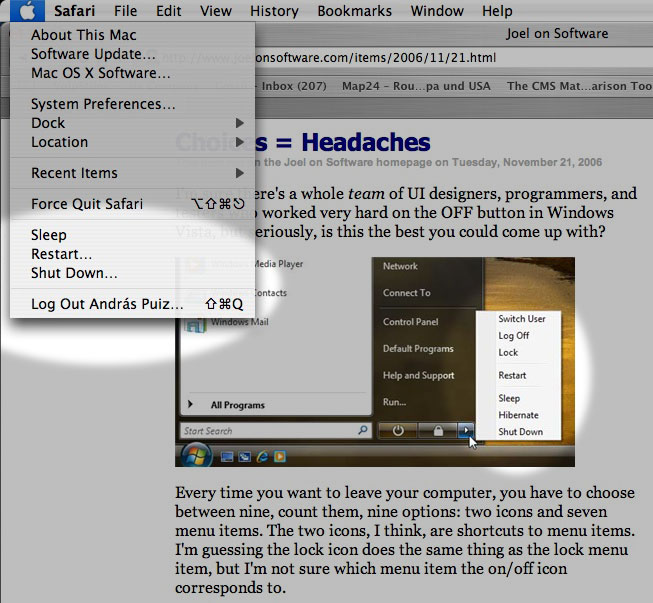
When you finish your work and leave your computer, you want to shut it down, put it to sleep, or something like that. Joel counts nine such options in Windows Vista, "two icons and seven menu items." The menu items are Switch User, Log Off, Lock, Restart, Sleep, Hibernate and Shut Down. The two icons are for Lock and possibly Shut Down (he isn't sure about the latter, the icon looks like a power button).

Then Joel goes on to count FN+Key combinations, the actual power button and closing the lid of a laptop, and arrives at a total of 15 choices to make whenever you leave your PC.

He then explains why that's wrong (emphasis added):

The more choices you give people, the harder it is for them to choose, and the unhappier they'll feel. See, for example, Barry Schwartz's book, The Paradox of Choice. […] “Schwartz […] shows that a bewildering array of choices floods our exhausted brains, ultimately restricting instead of freeing us. We normally assume in America that more options ('easy fit' or 'relaxed fit'?) will make us happier, but Schwartz shows the opposite is true, arguing that having all these choices actually goes so far as to erode our psychological well-being.”

The fact that you have to choose between nine different ways of turning off your computer every time just on the start menu, not to mention the choice of hitting the physical on/off button or closing the laptop lid, produces just a little bit of unhappiness every time.
Of course. Nobody would argue that it's acceptable to force you to make 15 choices each time you want to leave your PC.

But I have problems with the way Joel counts these choices.

Choices vs. redundancies

First, there are seven different choices for the operation to perform, and it's conceptually wrong to confuse these seven options with the different methods available for making your choice.

I can imagine in theory a novice user freaking out, "Should I choose sleep? Hibernate? Shut Down? Switch User? What the hell is Lock? Aaaargh, whatever, I don't care, can I just go away? Why so many choices?!"

Okay, maybe not exactly like that. But my point is that yes, Joel may be right, this can qualify as a problem of the "easy fit or relaxed fit?" variety (for some users at least): being presented with an unexpected or superfluous choice when you would like to just move on without making any further decisions.

But how can you count in here the different methods for making these seven choices? A user can close the lid, push the power button, use a keystroke, or click on an icon in order to activate any of these seven "leave computer" sequences. He'll choose one he prefers, and may not even know about the others. This is a very different kind of choice: it's a redundancy, an important element in user interface design.

Does it ever confuse anyone, or cause any unhappiness that you can select "Copy" from the Edit menu, from a contextual menu, or by pressing CTRL-C (or Command-C on a Mac)? It's not like you want to "Copy" and you have to make up your mind about how you want to do it. Probably, if you're near the menu bar, you'll choose the Edit menu. If you're using your mouse, you'll select the contextual menu. And if you've got your hands on the keyboard, you'll hit the keystroke. Or perhaps you're not even aware of all these options, and you use the one(s) that you like. Arguing against this kind of redundancy isn't something I'd expect from a great usability expert like Joel, and yet this is what he's doing here.

The elimination round

I'm not buying into Joe's creative accounting here, so like I said, we're down to seven choices.

Joel goes on to eliminate each of them, arriving at a single "b'bye" button that he thinks should suffice for everyone. It's an interesting idea and a good read, though it only survives on a couple of questionable premises, namely that RAM can be written out to flash memory, and that sleep/hibernation conserves as much energy as a shutdown.

But what's so wrong with these seven choices? True, having to choose between Sleep and Hibernate may be a bit unnecessary and geeky. But don't tell me that anyone's ever had a hard time choosing between Restart and any of the other six commands: when you want to restart, you won't be distracted by the other choices. You've made up your mind before going into that menu, and you won't start wondering whether you should maybe select Sleep or Switch User instead.

Similarly, when you want to switch to another user, you won't be bothered by the availability of a Hibernate option. The problem, if any, is simply that these choices live in one menu with perhaps too many (loosely related) items.

So I think Joel's argument breaks down here a bit as well: if you've already made your choice before going into a menu, why worry about other items that happen to coexist in that menu? By that logic, if you go into the Edit menu in order to select "Cut," does it bother you that you also have "Copy," "Paste," and even "Delete" right there, in the same menu? Should we eliminate them all, and arrive at a generic "Edit" command that somehow substitutes cutting, copying, pasting and deletion? I don't think so.

Joel also adds this comment:
Inevitably, you are going to think of a long list of intelligent, defensible reasons why each of these [shutdown] options is absolutely, positively essential. Don't bother. I know. Each additional choice makes complete sense until you find yourself explaining to your uncle that he has to choose between 15 different ways to turn off a laptop.
Not these fifteen ways again! The last time I checked, we were down to seven. Since Restart isn't really a choice for leaving your PC (it just happens to be loosely related and therefore in the same menu), now we're at six.

And here Joel is right: Windows should really let another user log in when the system is locked. I mean, what were they thinking when disallowing that?! If that were implemented, Lock could become a safe option in any multiuser environment for walking away from your screen, protecting your privacy, but without locking out all other users. In this context, Switch User would become less of a way to leave your PC and maybe letting others use it, and more of a choice for an occasion when the other user goes up to you and asks you nicely to let him work in for a sec.

So that would leave us down to five choices. Sleep/Hibernate should definitely be merged (as Joel suggests), and that would leave us at four: Sleep, Shut Down, Lock and Log Off.

I think these four are manageable, and perhaps if there had been just these four options around, Joel would never have written his piece.

A (not so) theoretical alternative

What if we organize these menu items a bit better? Let's put Sleep, Restart, Shut Down and Log Off in the same menu (maybe adding the user name to the latter, signifying to Joel's uncle that we're only logging him out). Restart, like I said, arguably belongs there, but isn't easily confused with the rest, so it can stay.

Lock can maybe become a screen saver thing or a general security option: when you activate the screen saver or put the computer to sleep, it will get locked, and you can either unlock it with the current user's password, or a second user can log in. Moving Lock out of the menu may not be the best solution possible, but at least, you're making that menu less cluttered.

And finally, since Lock now lets others log in, switching users no longer belongs among power-off options or among ways to leave your computer after work, so Switch User could really be moved somewhere completely different.

How about this? Still too many choices? Or is this a acceptable now, having found a balance between having all the necessary options without confusing novice users?

In any case, the alternative I've just described happens to be the way Mac OS X handles all of this.

Conclusion

Joel's article closes with these comments:
This highlights a style of software design shared by Microsoft and the open source movement, in both cases driven by a desire for consensus and for "Making Everybody Happy," but it's based on the misconceived notion that lots of choices make people happy, which we really need to rethink.
True. But the complete lack of choices Joel recommends (while admitting that those choices make perfect sense) would throw the baby out with the bath water. Logging off is not the same as quitting your all applications and switching to another user, especially not manually. Restarting is not the same as shutting down and starting up again, manually. Especially if "Shut Down" were also eliminated – for the sake of a sleep mode where it would be somehow safe to (manually) power off. So I think Joel might have overreacted a bit to Vista's design flaws.

Read More...

Friday, November 24, 2006

Spaces breaks Exposé

Macworld UK discusses Leopard's Spaces feature.

Expose will be closely integrated with Spaces. This means that you will be able to see all windows in all spaces using Expose, offering a quick and easy way to locate and switch to specific windows among multiple Spaces.
This may not be obvious at first, but the way Apple chose to implement Spaces pretty much gets in the way of Exposé. If you have created several Spaces and activate Exposé, it will only minimize windows in the current Space. Windows in other Spaces won't be visible.

If you want to see all your windows in all your Spaces, you need to reveal all your Spaces first (by pressing F8), and then use Exposé, which will work in the minimized Spaces: each window will be scaled to fit the minimized representation of its Space. Currently, before Spaces, all your windows would be minimized to fit the entire screen. That will no longer be the case when you have Spaces. If a Space has too many windows, Exposé will make them miniscule, while windows dwelling in other, less crowded Spaces will be scaled to large enough sizes.

If you have problems picturing it all, this Google video I found should help.

I would certainly prefer a solution where all my windows in all my Spaces would be scaled down and distributed to fit on the full screen. First, it would be a much better use of screen space. Second, for me, Exposé is all about revealing everything (as implied by its name). If I hit F9, I do that because I don't want to worry about switching apps or moving windows out of sight: I want to see everything. And no, I don't want to worry about Spaces either when I hit F9. And third, I don't want to use two consecutive keystrokes instead of one.

I think Spaces basically breaks Exposé in their current implementation. I'm not saying that the current solution is without merit, several users may actually prefer it to the alternative that I miss. But I don't see any reason why Apple couldn't implement that one as well. I certainly think we need a way to let Exposé minimize all windows on one screen, ignoring Spaces.

If you have any information suggesting that such functionality is available or is being planned, please let me know.

Read More...